Showing posts with label Downloads. Show all posts

Wednesday, July 31, 2024

How to Set Video Wallpaper on Windows 11 (4 Methods)

July 31, 2024 0

Windows 11 has already introduced a few new wallpapers, themes, and icons. It also provides an option to set Bing wallpapers on both the desktop and lock screen. If you are unsatisfied with the customization options, you can set Video as your desktop wallpaper on Windows 11.

You can set Video as desktop wallpaper on Windows 11, but since the operating system doesn’t natively support the feature, you must rely on third-party apps. Here’s how you can set video as a wallpaper on Windows 11.

1. Set Video As Wallpaper With VLC Media Player

You can use VLC Media Player to set video wallpaper. For those who don’t know, VLC is a free media player that’s capable of playing all sorts of video/audio formats. Here’s how to use it to set video as the wallpaper on Windows 11.

1. First of all, download & install the VLC Media Player app on your Windows 11 computer.

2. Now locate the video you want to set as desktop wallpaper. Play the video file with a VLC media player.

3. Now right-click on the video and select Video > Set as Wallpaper.

4. Now, the video will turn to full screen. This means the video has been set as wallpaper.

The problem with the VLC media player is that it plays the video in full-screen mode, you can access the Start button, Windows toolbar, etc., but the desktop icons and shortcuts are missing.

2. Set Video As Wallpaper Using YouTube

If you don’t want to install any third-party app, you can use YouTube’s desktop website to set the video as wallpaper. When you play a YouTube video in full-screen mode, the video continues to play in the background when you work on other things.

This means you can still access the Start Menu, your opened apps, etc., but you won’t be able to use the desktop icons or shortcuts.
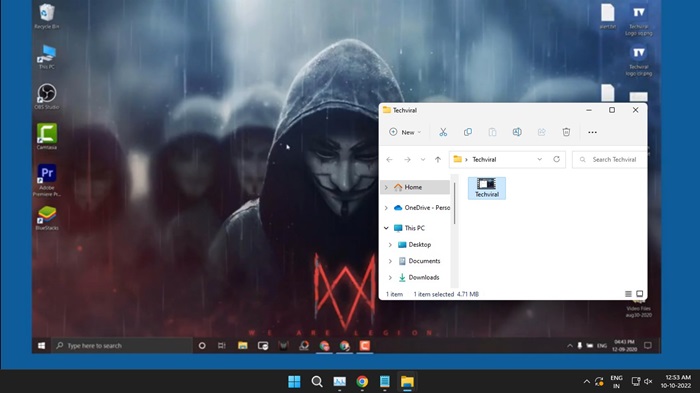
Set Video As Wallpaper Using YouTube

1. First, open your favorite web browser and visit YouTube.com.

2. Now play the video that you want to set as background.

3. Double-click on the video to enter the full-screen mode.

4. You need to use the ALT+TAB function to switch through open apps.

3. Set Video Wallpaper on Windows 11 with Desktop Live Wallpaper+

Desktop Live Wallpaper+ is a Microsoft Store app that lets you use images, GIFs, and videos as desktop wallpaper. It’s free and runs fine on the latest Windows 11. Here’s how to use the app.

1. Download and install Desktop Live Wallpaper+ on your Windows 11 computer.

2. Once installed, open the application and click Add Photos/Videos.
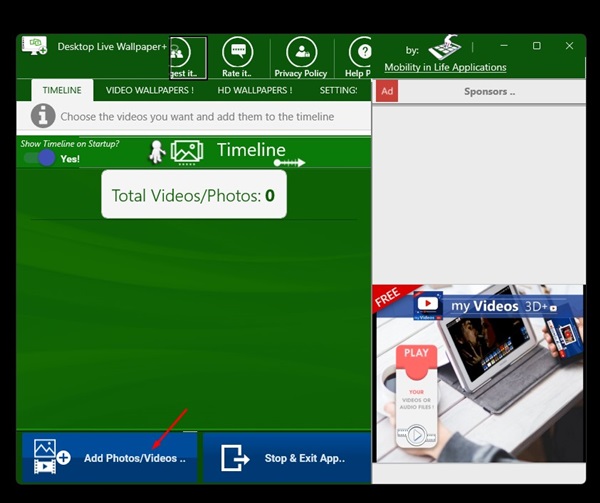
Add Photos/Videos

3. Now select the video background that you want to set.

4. Once done, click on the Apply Changes button.
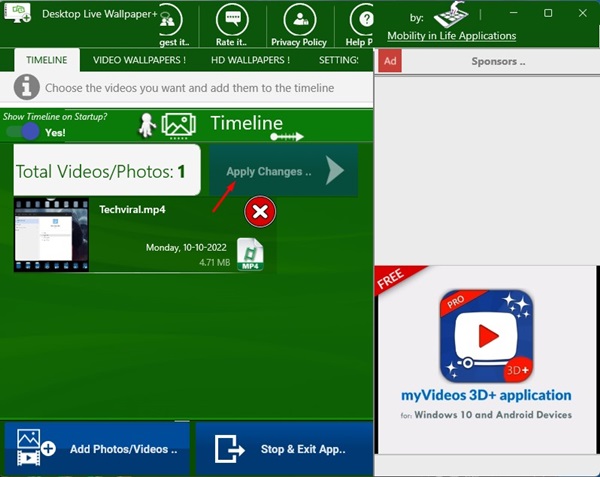
Apply changes

5. You can also explore the Settings section to make other adjustments, such as transitions, video sound, photo duration, etc.
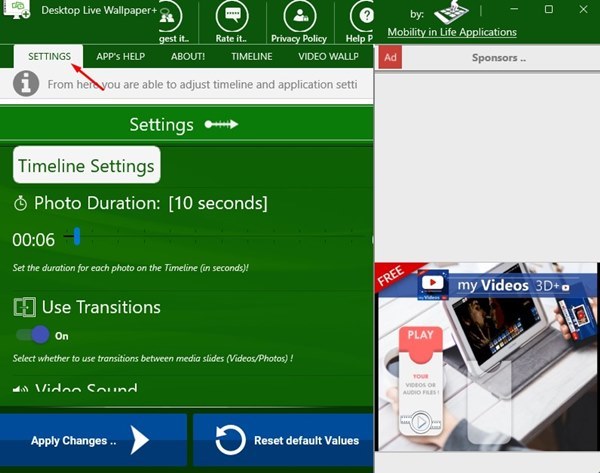
Settings

6. To stop the video wallpaper, right-click the Desktop Live Wallpaper+ system tray icon and select Exit.
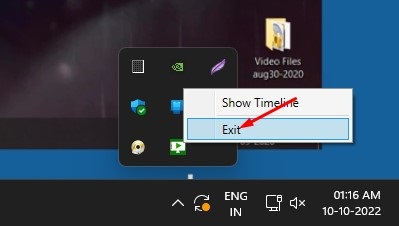
Exit

4. Set Video Wallpaper Using Lively Wallpaper App

Lively Wallpaper is an open-source Windows app for setting GIFs, Videos, and Webpages as desktop backgrounds and screensavers. Here’s how to use it to set a video background.

1. Download & Install the latest version of the Lively Wallpaper app on your PC from the Microsoft Store.
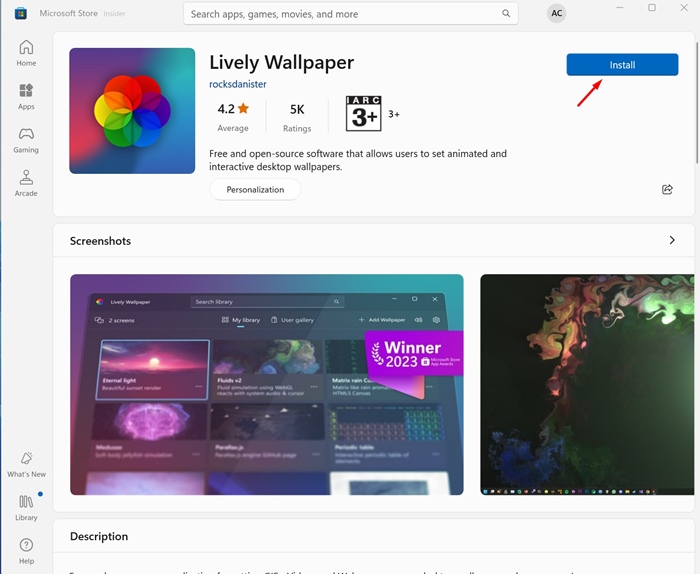
Lively Wallpaper

2. Once installed, launch the Lively Wallpaper app on your PC. Next, click on Add Wallpaper.
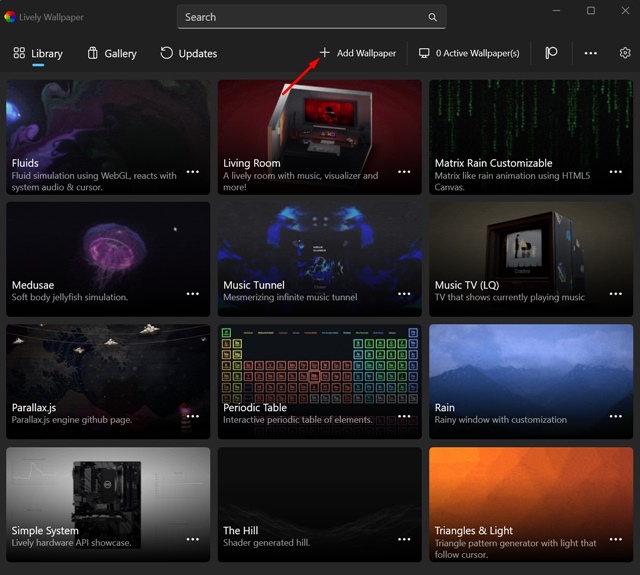
Add Wallpaper

3. Next, click the Choose a file option and select a video file to set it as a wallpaper.
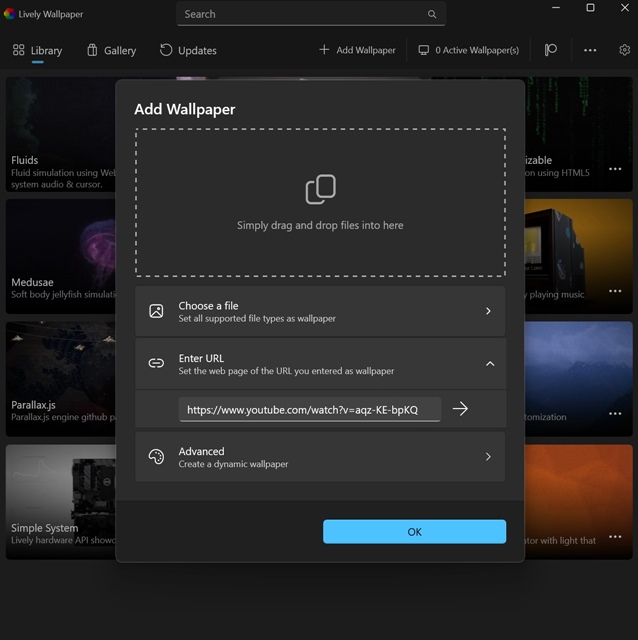
Choose a file

4. You can also enter the URL of a YouTube video and set it as a desktop background.

5. The tool also allows you to create Dynamic wallpaper. To do so, click on Advanced.

6. After selecting the video, click OK and wait until the tool processes the video as a wallpaper.
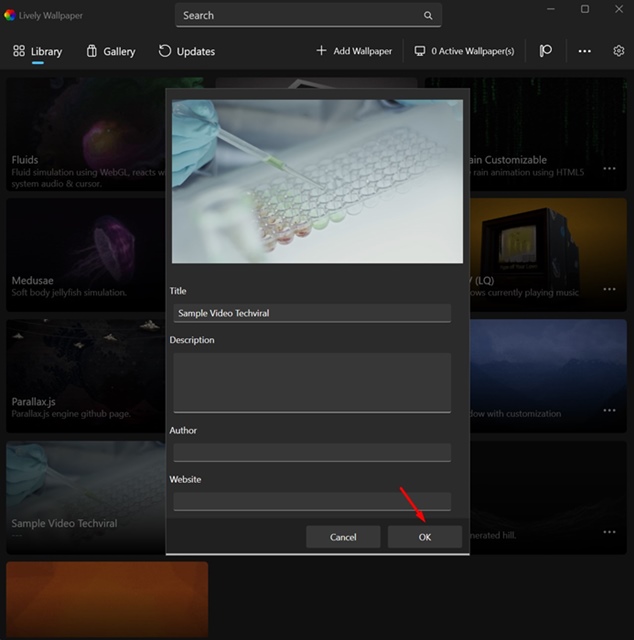
OK

7. Once the video is processed, click the three dots and select Set as Wallpaper.
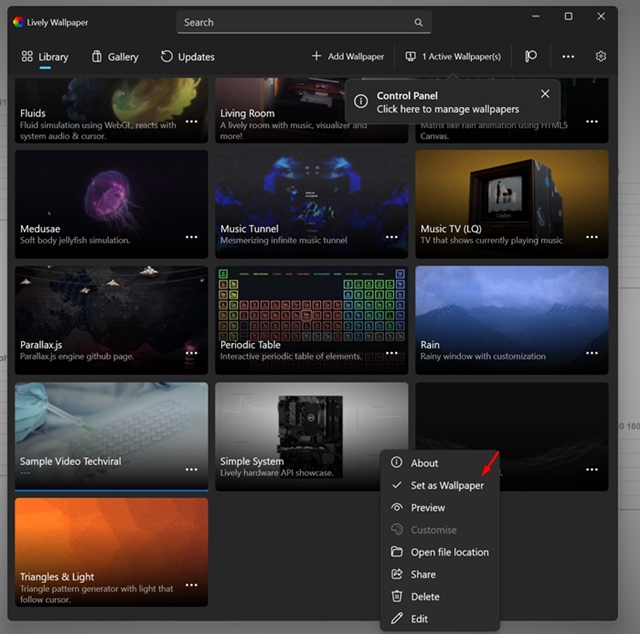
Set as Wallpaper

Frequently Asked Questions:

Are these video wallpaper apps free?

Yes, all video wallpaper apps we have used in this article are free to download and use. They are not just free but also very safe to use.

Will Video Wallpaper drain my laptop’s battery?

Yes, the video wallpaper will consume more battery power than a static one. So, if you want to preserve your battery life, it’s best to switch to a static wallpaper.

The video wallpapers looks blurry? What to do?

To fix this issue, you can restart your Windows 11 PC and set the video again as wallpaper. Also, ensure you’ve selected a high-resolution video to set as video wallpaper.

Can I set video wallpapers across multiple screens?

The lively wallpaper app we have used in the article lets you apply the same video wallpaper across multiple screens.

This guide explains how you can set a video as the wallpaper on Windows 11. If you need more help setting video wallpaper on Windows 11, let us know in the comment box below.

How to Increase Download Speed in Chrome for Android (10 Methods)

July 31, 2024 0

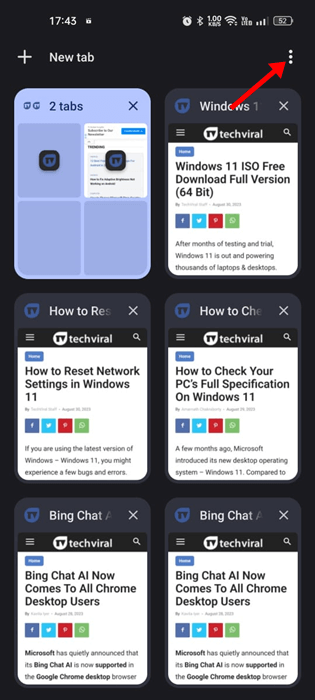
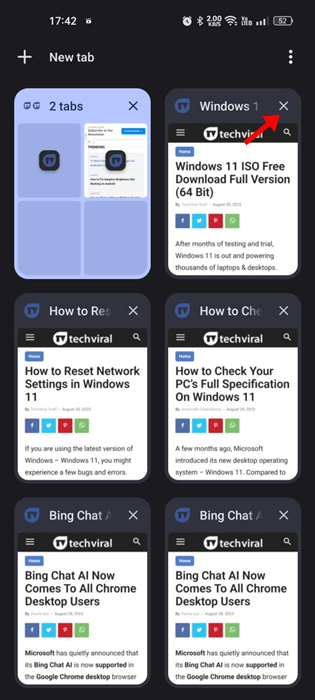
2. Now, you can see all tabs running in the background.

3. Simply tap the (x) button on the tab you want to close.

tap the (x) button

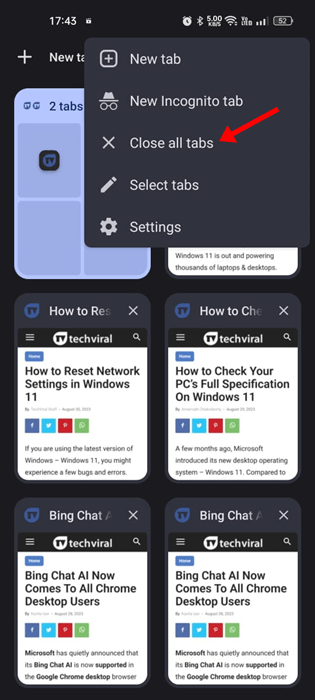
4. To close all tabs, tap on the three dots at the top right corner.

three dots

5. On the menu that appears, select Close all tabs.

Close all tabs

3. Disable Battery Optimization for Chrome

The latest version of Android has a feature that automatically optimizes battery consumption for the apps. You need to turn off the battery optimization for the Google Chrome browser to fix the slow download speed Chrome for Android issue. Here’s what you need to do.

1. Open the Settings app on your Android device.

2. When the Settings app opens, tap on the Battery.

Battery

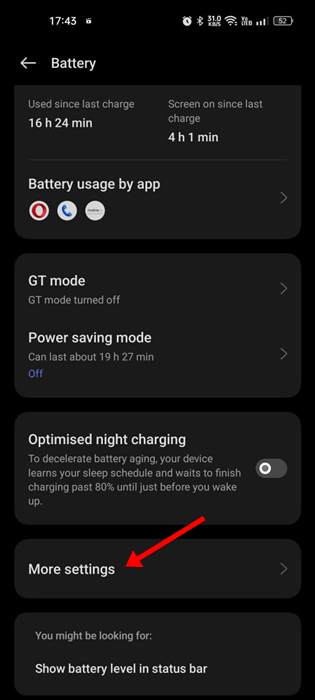
3. On the Battery, tap on the More Settings.

More Settings

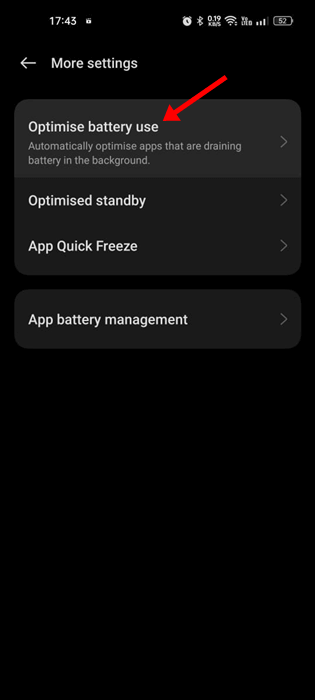
4. Now tap on the Optimize battery use.

Optimize battery use

5. Find Google Chrome & tap on it.

6. On the menu that appears, select Don’t Optimize.

After making the changes, make sure to restart your Android smartphone. This should fix the slow download speed on Chrome problem on Android.

4. Enable Parallel Downloading on Chrome

Parallel downloading is a Chrome specific feature that accelerates the download speed. The feature is available for all sorts of operating systems, but it needs to be enabled manually. Here’s how you can enable parallel downloading on Chrome.

1. Open the Google Chrome web browser on your Android device.

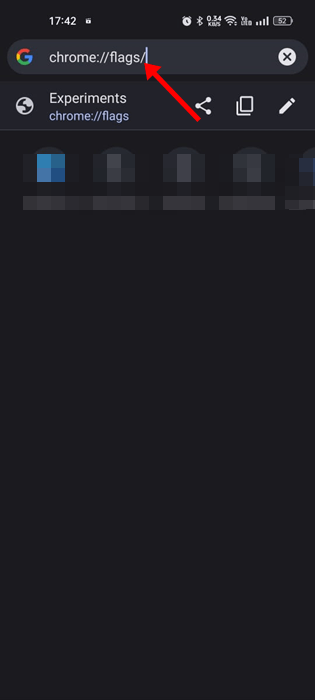
2. On the address bar, type chrome://flags and press Enter.

chrome://flags

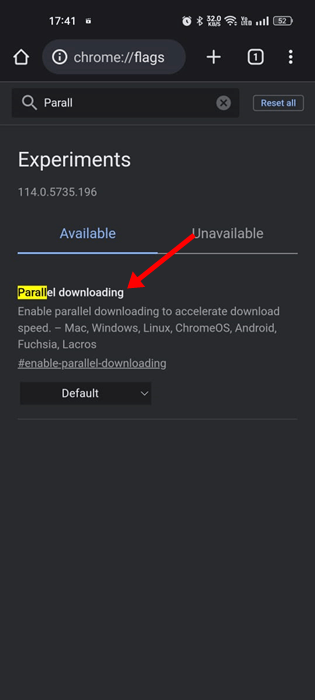
3. Type in Parallel downloading in the search field.

Parallel downloading

4. Tap on the Parallel downloading drop-down and select Enabled.

Enabled

5. After making the changes, tap the Relaunch button at the bottom.

Relaunch

5. Enable Background Data for Chrome

If the Background data is disabled for Chrome for Android, the download will fail once you minimize the web browser. Enabling background data won’t speed up downloads but will reduce the chances of download failures. Here’s what you need to do.

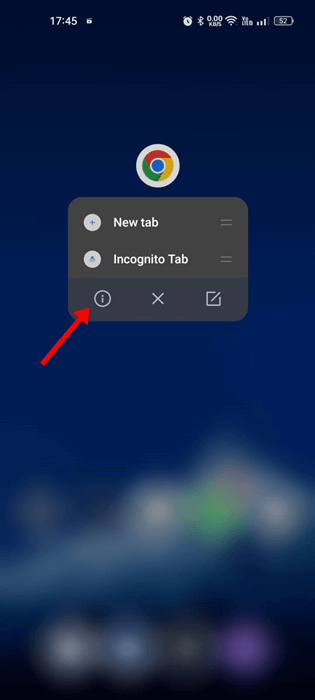
1. Long press the Chrome app icon on your home screen.

2. On the menu that appears, select App info.

App info

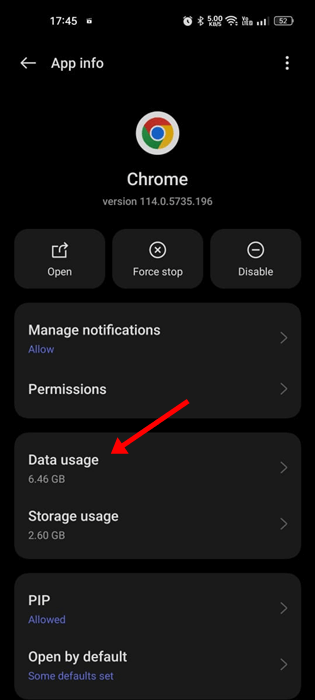
3. On the App info screen, tap on the Data Usage.

Data Usage

4. On the Data Usage screen, enable the toggle next to the Background Data.

Background Data

6. Turn off the VPN/Proxy Apps

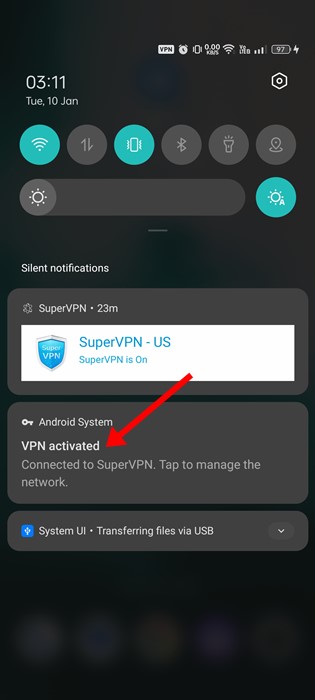
You are using a VPN/Proxy

VPN and Proxy apps can unblock sites for you but can hamper the download speed. VPNs or Proxy apps are never recommended for downloads, as the downloads may fail in case of a connection leak.

So, if you are using VPN or Proxy apps, you can disable them temporarily and resume your downloads. If you still experience slow download speed, you can continue using the VPN/Proxy apps.

If your work involves using a VPN, at least try to use premium VPNs that offer better download speed & minimal connection leak issues.

7. Change the DNS server to speed up downloads

By default, your phone uses the DNS server your Internet Service Provider assigned. The ones assigned by ISPs are often problematic and known for creating slow download issues. The best you can do is to set up a different public DNS server on your Android to speed up Chrome downloads on Android.

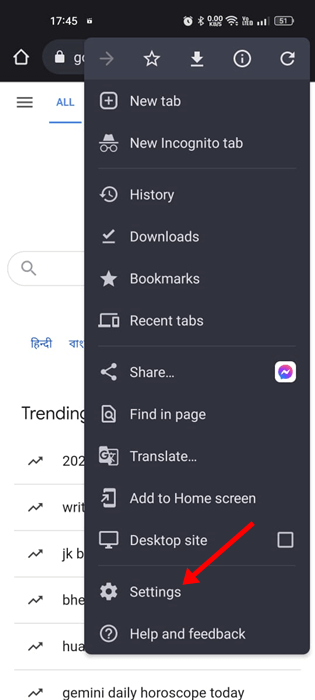
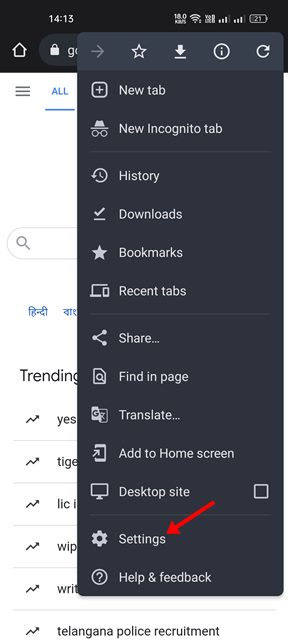
1. Open the Google Chrome browser and tap the three dots at the top right.

three dots

2. On the menu that appears, select Settings.

Settings

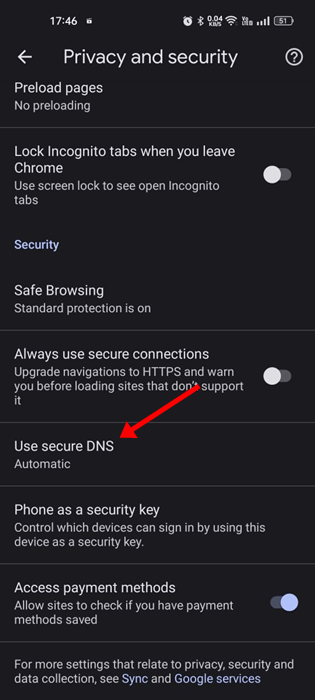
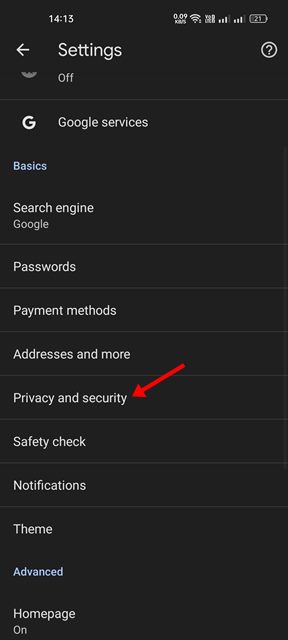
3. On the Settings, tap on the Privacy and security.

Privacy and security

4. Now tap on the Use secure DNS.

Use secure DNS

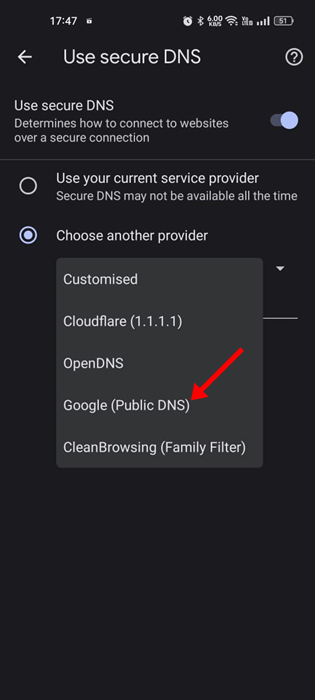
5. On the Use secure DNS screen, select Choose another provider.

6. Select any public DNS server (Google DNS) is recommended.

(Google DNS)

8. Clear Chrome Cache & Cookies

Like every web browser, Google Chrome for Android also accumulates cache data to enhance the browsing experience. If this cache data becomes outdated or corrupted, Chrome may download your files slowly.

You will even face problems related to download stopping on Chrome for Android. You need to clear the Chrome Cache & Cookies to resolve such issues. Here’s what you need to do.

1. Open the Chrome browser on your Android and tap on the three dots.

three dots

2. From the list of options that appears, tap on Settings.

Settings

3. On the Settings, tap on the Privacy and Security.

Privacy and security

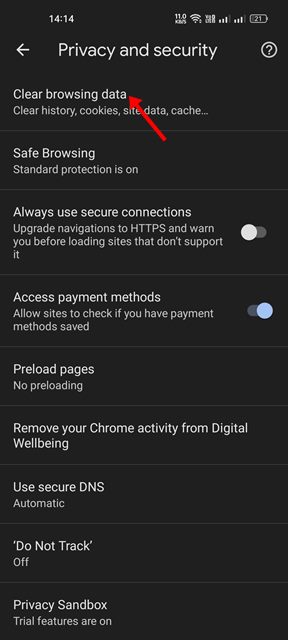
4. On the Privacy and Security page, tap on Clear browsing data.

Clear browsing data

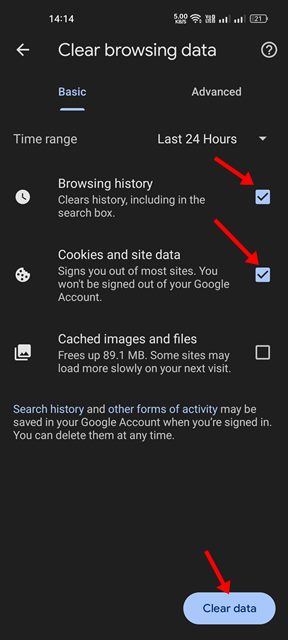
5. Check the options – Browsing History and Cookies and Site Data.

clear data

6. Now tap on the Clear Data button at the bottom right.

9. Update Google Chrome

Update the Chrome Browser

Keeping apps up-to-date is a good idea as it brings new features, bug fixes, security patches, etc. Chrome updates often bring more stability & features to improve the user experience.

Your browser version may have a bug or glitch that conflicts with the downloads, leading to slow download speeds.

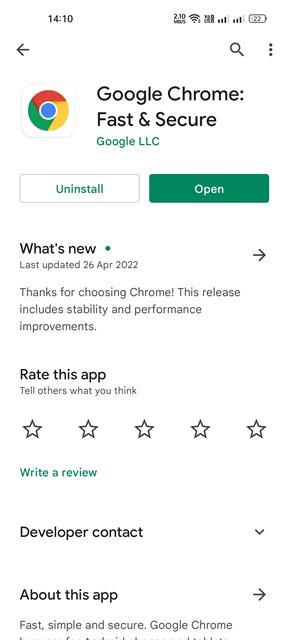
So, you need to head to the Google Play Store and install all available updates. You must tap the Update button on the Google Play Store’s Google Chrome app listing page. This will update the browser.

10. Reinstall the Chrome browser

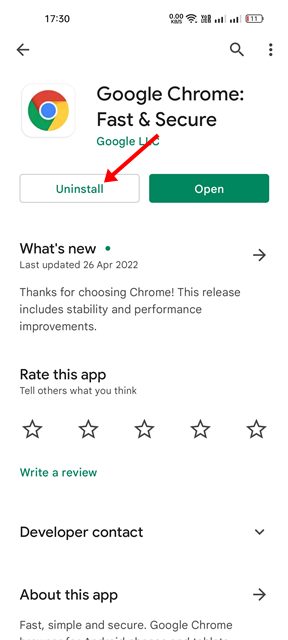
Uninstall

If nothing worked in your favor and the slow download speed issue is still prominent, you must reinstall the web browser.

Reinstalling will delete the history, data, and cache files. To reinstall the Chrome browser, open the Google Play Store and search for Google Chrome.

Next, open the Google Chrome app listing and select Uninstall. Once installed, tap on the Install button again.

These are some of the best and most effective methods for increasing Google Chrome download speed on Android. In the comments below, let us know which method worked for you to speed up Chrome downloads. Google Chrome for Android has bugs, glitches, and other issues that can ruin a user’s web browsing experience. Recently, many Android users have reported Google Chrome download problems.

According to users, Google Chrome for Android takes forever to complete the ongoing downloads. If you’re dealing with the same issue, follow up with the tips we shared to speed up Chrome downloads.

1. Restart the Chrome Browser

If you are experiencing slow download speeds in Google Chrome for Android, restart the web browser.This is one of the first things you should do if you’re experiencing slow download speed Chrome for Android for the first time.

All you need to do is close the Chrome web browser and reopen it. After the restart, download your files again.

2. Close all Unused Tabs

Chrome browser actually keeps all unused tabs in the background. Although the inactive tabs won’t use your RAM resources, they adversely affect the browser’s overall performance.

There are likely too many browser tabs running in the background, which affects the download speed. You can close those unwanted tabs to speed up Chrome downloads on Android.

1. Open the Chrome browser and tap the Square icon beside the (+) button.