A Mobile Hotspot is an important phone feature as it allows you to share your internet connection with other devices nearby.
The personal hotspot feature of the iPhone works fine most of the time, but in very rare cases, it shows a few problems. Recently, a few users reported an iPhone hotspot turns off automatically problem.
Why iPhone Hotspot Keeps Disconnecting?
Your iPhone’s Hotspot can disconnect for several reasons. Below, we have shared a list of reasons that lead to frequent disconnection from iPhone hotspot.
- iPhone hotspot is disabled.
- The Battery saver or low data mode is enabled.
- There were more than 90 seconds of inactivity.
- Your iPhone is too far away from the device you’re trying to connect.
- Your data limit is exhausted.
- Incorrect network settings.
- Bugs & Glitches in the version of iOS installed on your iPhone.
These are some prominent reasons why iPhone hotspot disconnect frequently. Now that you know the reasons, you should follow these workarounds to resolve the problem.
1. Turn off the Low Data Mode
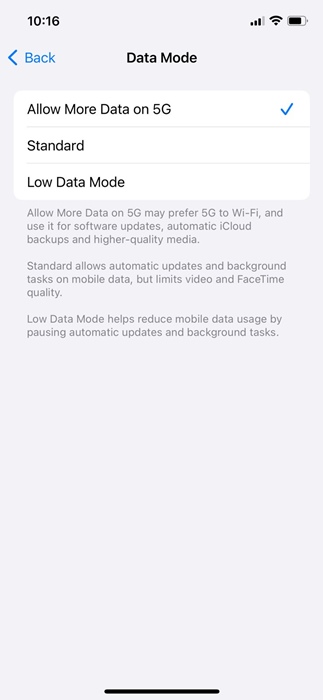
Low Data Mode is a feature that helps reduce cellular data usage. When it’s turned on, several background tasks are restricted. You should disable this feature to fix iPhone hotspot turns off automatically problem.
1. Launch the Settings app on your iPhone.
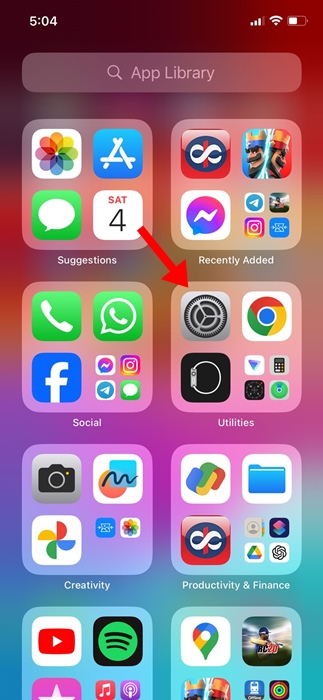
2. Next, select the Mobile Service.

3. On the next screen, tap Mobile Data Options.

4. On the next screen, tap on Data Mode.
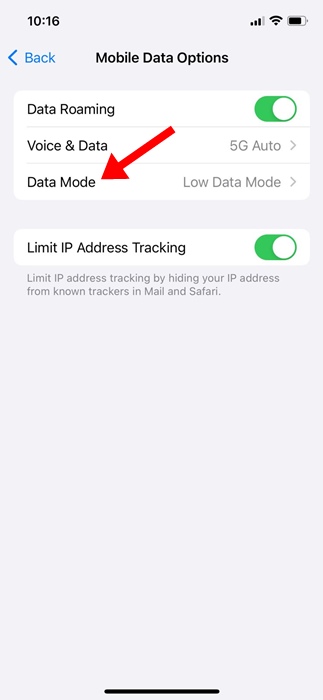
5. On the Data Mode screen, select either Standard or Allow More Data on 5G.
2. Turn off the Low Power Mode
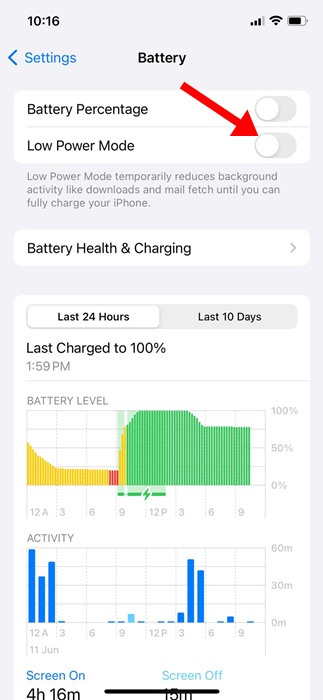
Like the Low Data Mode, you also need to disable your iPhone’s Low Power Mode feature to solve the hotspot disconnecting problem. Here’s what you need to do.
1. Launch the Settings app on your iPhone.
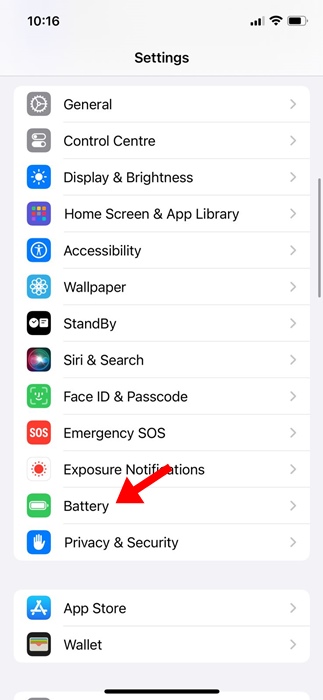
2. When the Settings app opens, tap on Battery.
3. On the Battery screen, turn off the toggle for Low Power Mode.
3. Turn On the Maximize Compatibility
Maximize Compatibility is a feature that may reduce the internet performance and WiFi security for devices connected to the hotspot, but it does increase compatibility, leading to an undropped connection. Here’s how you can enable it on your iPhone.
1. Launch the Settings app on your iPhone.
2. When the Settings app opens, tap on Personal Hotspot.

3. On the Personal Hotspot screen, turn on the toggle for Maximise Compatibility.

4. Connect the Devices to Bluetooth
Many Reddit users seem to benefit greatly from connecting their devices via Bluetooth. Basically, after connecting to the hotspot, connect the devices via Bluetooth as well.
This has helped many iPhone users keep the connection more stable. You can try doing it as well and see if it helps.
5. Update your iPhone
It’s possible that the version of iOS installed on your iPhone has a bug or glitch that may be preventing the hotspot from functioning properly.

To eliminate system-level bugs and glitches, you need to install the pending iOS updates. Simply head to Settings > General > Software Update and see if any update is pending installation.
If any update is available, download & install them on your iPhone.
6. Reset the iPhone Network Settings
The last thing you can do to fix the hotspot turns off on its problem is reset your iPhone’s network settings.
Resetting the network settings will delete all saved WiFi networks, Bluetooth devices, VPN settings & preferences, mobile data limits you’ve set.
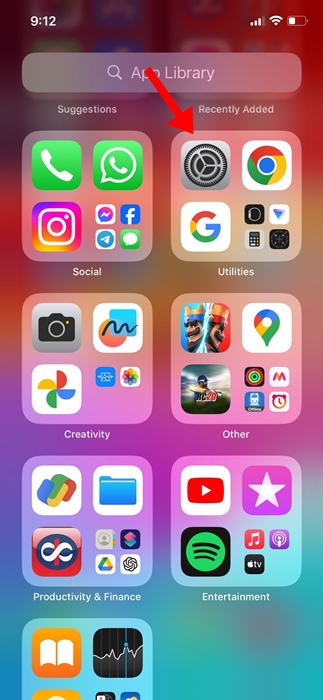
1. Launch the Settings app on your iPhone and tap on General.
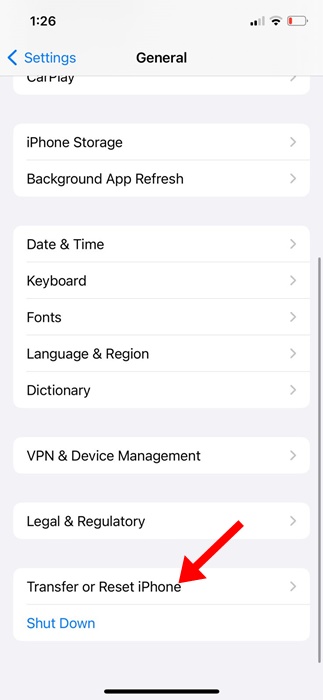
2. On the General screen, scroll down and tap Transfer or Reset iPhone.
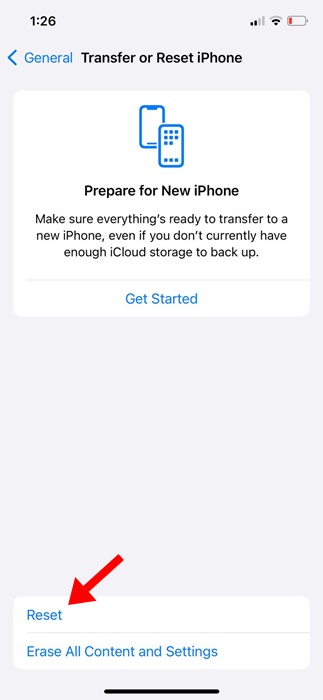
3. On the Transfer or Reset iPhone screen, tap Reset.
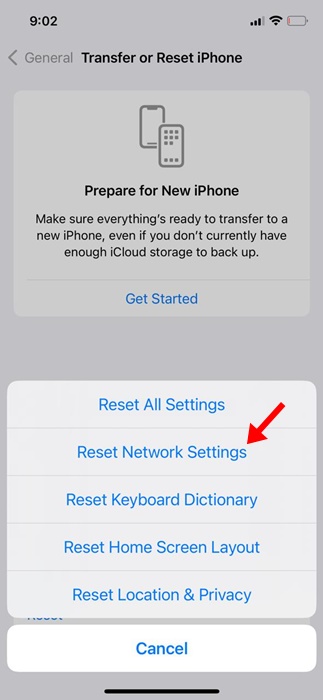
4. On the prompt that appears, tap Reset Network Settings.
These are the few best ways to fix the iPhone hotspot turning off on its own problem. If you need more help with this topic, let us know in the comments. Also, if you find this guide helpful, don’t forget to share it with others.