Showing posts with label Android. Show all posts

Tuesday, July 30, 2024

How to Combine PDF Files On Android in 2024

July 30, 2024 0

 Since we deal with many electronic documents every day, it’s always best to combine multiple PDF files into a single PDF Document.

You can rely on several websites to combine multiple PDFs into a single, but what if you want to combine PDF files on Android? Just like a Windows computer, you can combine PDF files on Android. Many third-party apps are available for Android to merge multiple PDF files into one. Here are some of them.

Combine PDF Files On Android Using PDFelement

PDFelement from Wondershare is one of the best productivity tools for reading, annotating, and managing PDF files on the go. With PDFelement, you can easily combine files in different formats into a new PDF. Let’s check out how to combine multiple PDF files using PDFelement.

1. Download & install PDFelement on your Android smartphone.
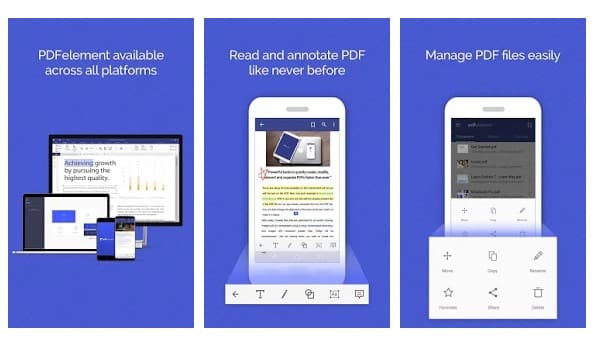
download & install PDFelement

2. Once done, it will list all PDF files that are stored. If you cannot find your PDF file, you need to browse the file directory and import it.

3. Tap the icon in the top right corner, as shown below.
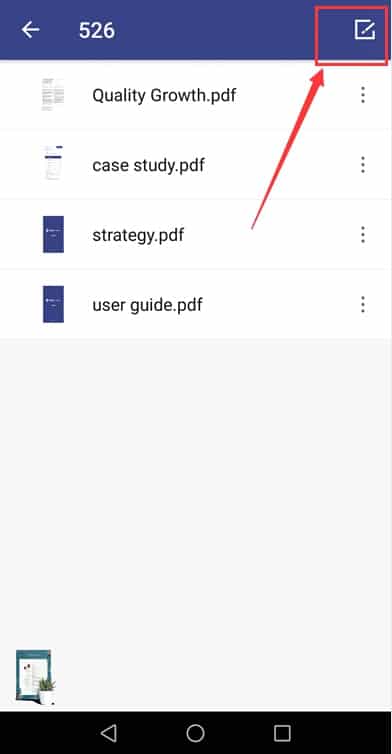
Tap on the 'Edit' icon

4. Select the PDF files you want to combine and tap the Combine icon.
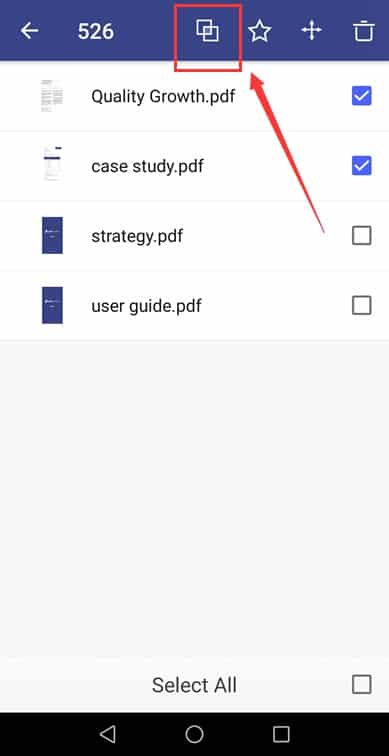
Select the PDFs that you want to merge and click on the ''Combine'' button

Now select the folder where you want to save the combined PDF file. This is how you can use PDFelement to combine PDF files on Android.

Combine PDF Files Using Combine PDF

Combine PDF is another free Android app that lets you merge PDF files. The app is available on the Google Play Store, and here’s how to use it to combine PDFs on Android.

1. Download & install the Combine PDF app on your Android device.
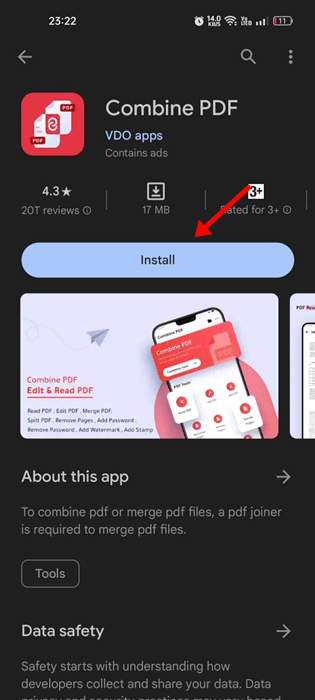
Combine PDF

2. Open the app and click the Combine Now button.
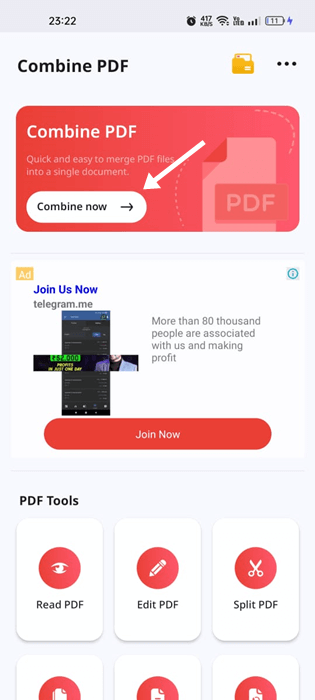
Combine Now

3. The app will ask you to grant the storage permission. Tap on the Allow access to grant permission.
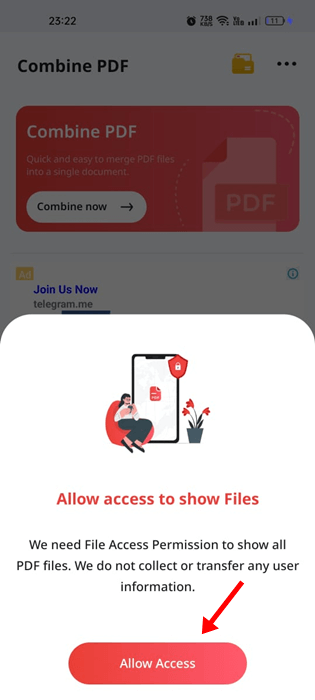
Allow access

4. Now select the PDF files you want to merge. Once selected, click on the Combine button at the bottom right.
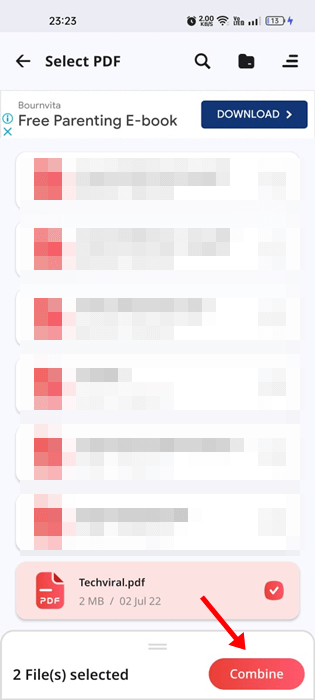
Combine

5. Now enter the PDF name and tap on Done.
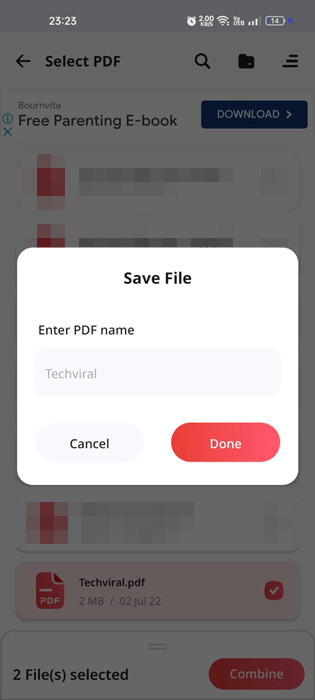
PDF name

6. This will merge your selected PDF files. Tap on the View PDF to view the merged PDF on Android.
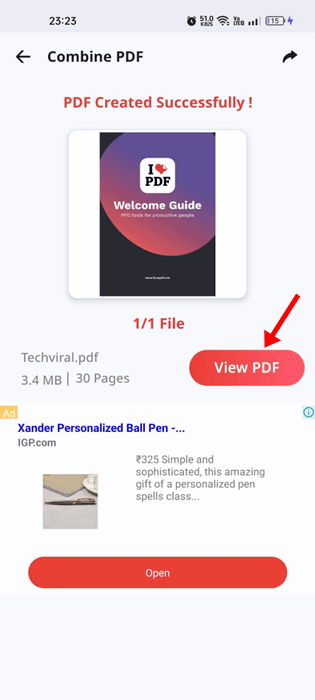
View PDF

This is how you can use the Combine PDF app on Android to combine two or more PDFs into one.

Some other apps to merge PDF files:

Like the PDFelement, plenty of other Android apps for merging PDF files are available on the Play Store. Here are some other options.

1. PDF Merge
PDF Merge

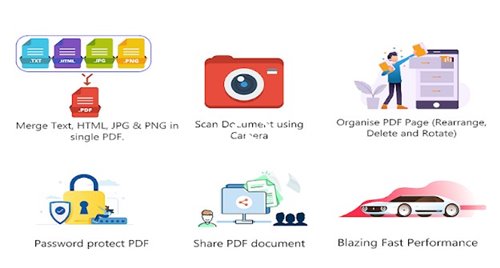
As the app’s name says, PDF Merge is an Android application that lets you merge two or more PDF, web pages, JPEG, and PNG files into one compact PDF.

The good thing about PDF Merge is that it’s very easy to use and lightweight. It also supports drag and drop files. Some other features of PDF Merge include a PDF converter, PDF Compressor, and more.

2. PDF Utils
PDF Utils

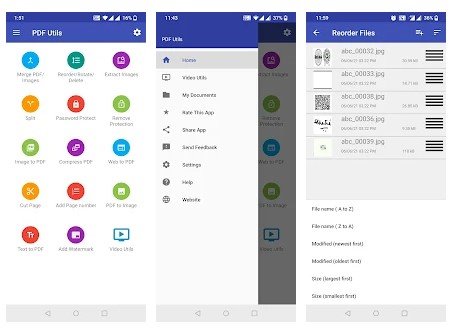
If you are looking for a free and lightweight PDF utility for your Android device, look no further than PDF Utils. It provides various tools for managing PDF files.

For example, this app can merge multiple PDF files into one, convert PDF, Compress PDF files, Cut PDF files, and more.

3. iLovePDF
iLovePDF

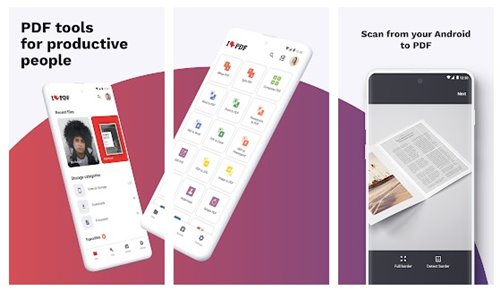
iLovePDF is a full-fledged PDF app for Android smartphones. With iLovePDF, you can read, convert, annotate, and sign PDF in just a few seconds. It also has an OCR feature that turns any scanned text or image into a PDF with high accuracy.

In addition, this app can combine multiple documents into a single PDF file, split PDF, Rotate PDF, and more.

4. PDF Utility
PDF Utility

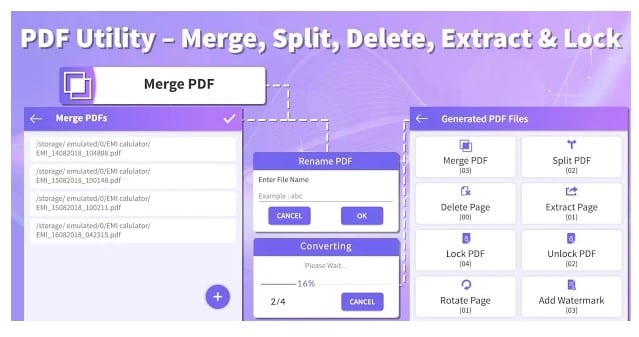
Although not popular, PDF Utility is still the best option for merging PDF files on Android. With this app, you can merge PDF files, split PDF files into two, delete pages from PDF files, etc. So, it’s a complete PDF management tool that can be used for various purposes.

5. PDF Tools
PDF Tools

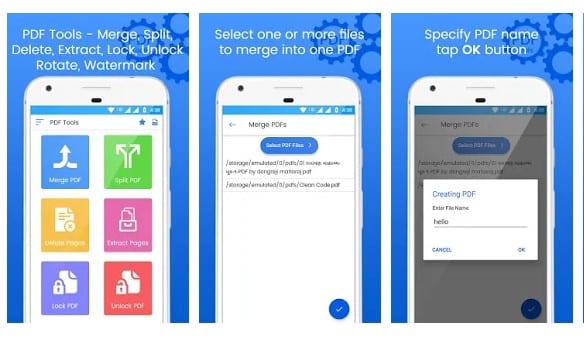
If you are searching for an Android app to merge, split, and delete pages from PDF files, you must try PDF Tools. It’s a multi-purpose PDF management tool that can convert, compress, and edit PDF files. You can even set a password to the PDF file with this app.

You can use this method or rely on PDF apps to merge your PDF files on Android. I hope this article helped you! Please share it with your friends also. If you have any doubts, let us know in the comment box below.

How to Have Apple Genmoji Type Stickers on Android

July 30, 2024 0

 If you keep up with the latest iOS 18 news, you may know about Genmoji. iOS 18 users will soon be able to make custom emojis using AI on the new iOS operating system.

What is Genmoji on iOS 18?

Genmoji is basically a form of sticker, but its creation process is quite different from traditional methods. Genmoji will be an Apple Intelligence feature in iOS 18.

With this feature, iPhone users will be able to use AI to generate emoji characters solely based on text inputs.

Basically, Genmojis will look very similar to emojis, but they will be custom-created. You can consider this an emoji created via text input with the help of AI.

How to Get Genmoji like stickers on Android?

While Genmoji is an Apple exclusive feature, Google is said to be bringing a similar feature to its Pixel smartphone series.

Even if you don’t have a Pixel phone, you can use third-party apps to bring iOS 18 type Genmoji to your Android phone.

Using Microsoft Copilot App to Generate Genmoji type Stickers on Android

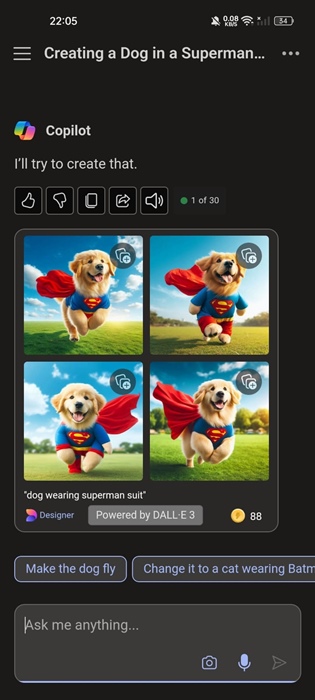
Yes, the Microsoft Copilot app can be used to generate Genmoji-Like stickers on Android smartphones. Technically, Copilot will generate an AI image with the text input you provide; later, it needs to be converted into a sticker.

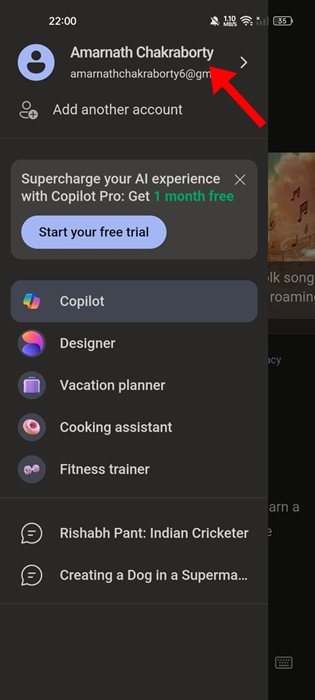
1. To get started, launch the Microsoft Copilot app on your Android phone.

Microsoft Copilot

2. Sign in to your Microsoft account to generate the images.

Microsoft account

3. Now, enter a text prompt to generate an image. You need to be very clear with the text prompt to generate AI images.

4. After generating an image, tap on the variant as per your choice.

generating an image

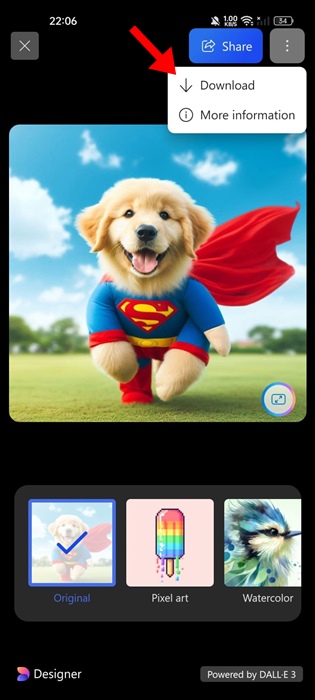
5. Next, tap on the three dots at the top right corner and select Download.

three dots

How do you turn images into stickers on Android?

After generating the AI images, it’s time to generate those AI Based images as stickers. To do this, we are going to use the WhatsApp app.

1. Launch the WhatsApp app and open a chat where you want to send the Genmoji type Sticker.

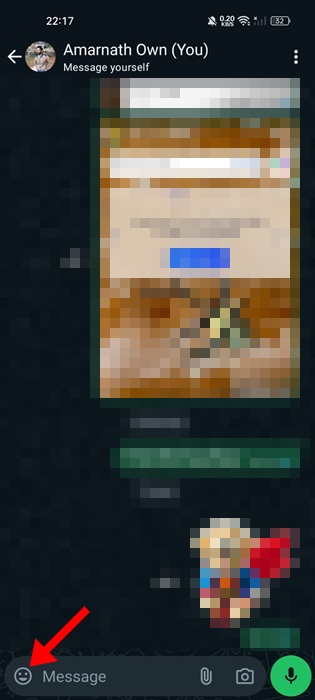
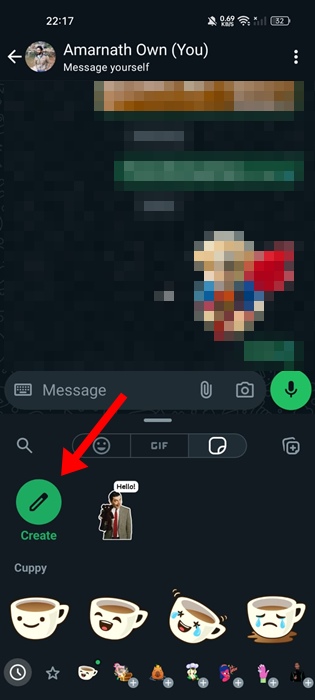
2. Next, tap the emoji icon at the bottom left of the chat field.

emoji icon

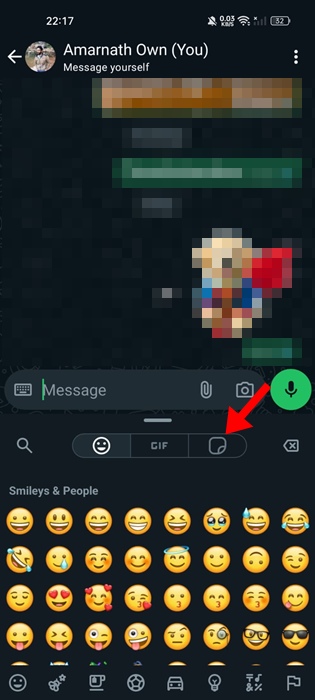
3. Switch to the Stickers tab as shown in the screenshot below.

Stickers

4. Tap on the Create button to start creating a sticker from your image.

Create

5. Select the AI Generated image that you’ve downloaded from the Microsoft Copilot app.

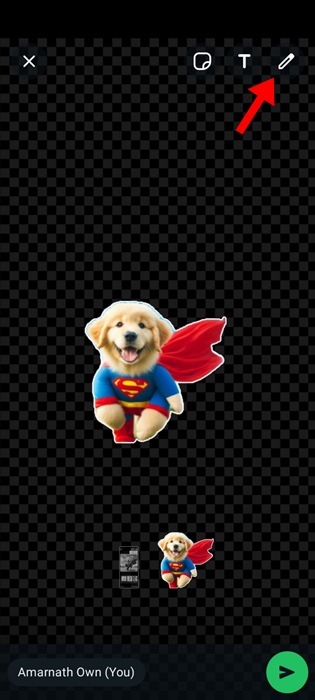
6. The background will be removed from the image. If you want to make minor edits, tap the Edit icon at the top right corner of the screen.

Edit icon

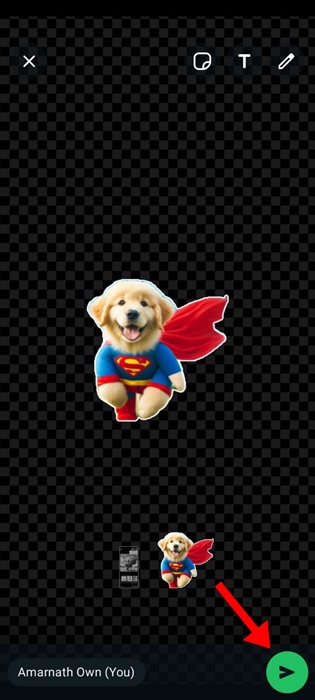
7. The sticker you’ve created will be saved on the WhatsApp. Simply tap on the Send button to send it to the chat.

saved on the WhatsApp

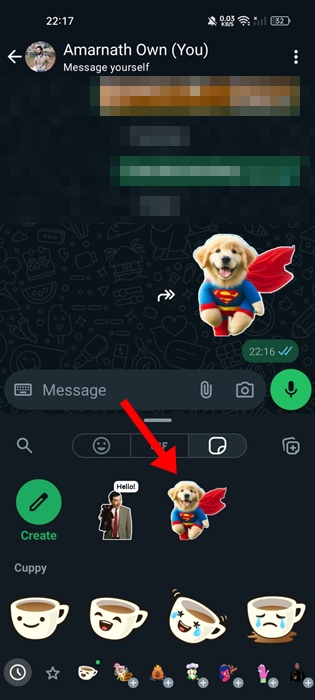
8. You can now use the sticker on any chat.

use the sticker

These are some simple steps to get Apple Genmoji Like stickers on any Android phone. Let us know if you need more help on this topic in the comments. Also, if you find this guide helpful, don’t forget to share it with your friends.

How to Find Your iPhone From an Android Phone

July 30, 2024 0

 You may be very well aware of Find My iPhone if you’re an iPhone user. This is a location feature that lets you find your lost or misplaced iPhone.

While Find My iPhone is an Apple-exclusive feature, it can be accessed from any device, such as a Windows Laptop, MacOS, or Android.

Finding an iPhone from an Android phone

Now, if you have already lost your iPhone and don’t know what to do, you can utilize the Find My iPhone feature from an Android phone.

You can access your iCloud account from an Android phone and check where your iPhone is placed. Not just on Android, you can access your iCloud account from any device with a web browser.

How to Find an iPhone from an Android device?

To find your lost iPhone from an Android phone, you need to access your iCloud account. Since Apple’s Find My iPhone tool comes preinstalled on every iPhone and is enabled by default, you can utilize that feature to find your missing iPhone. Here’s what you need to do.

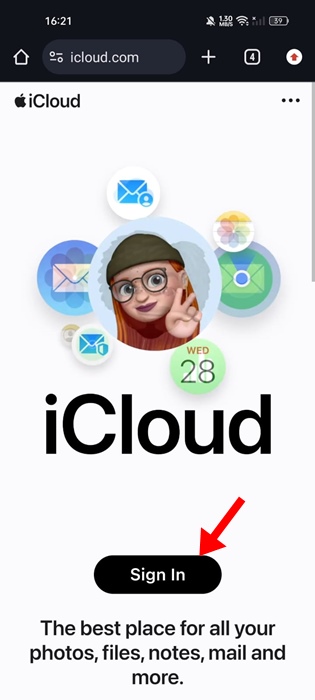
1. To get started, launch a web browser on your Android phone.

2. Next, visit this webpage and sign in with your iCloud account.

sign in with your iCloud account

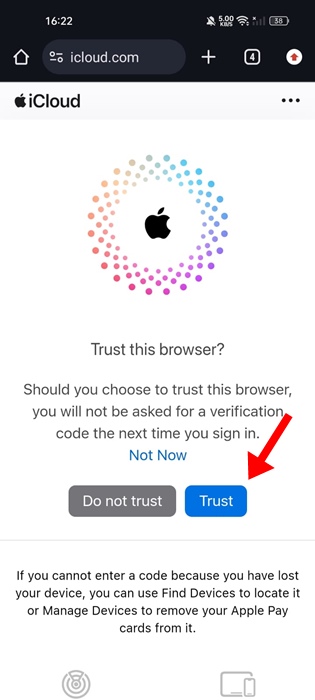
3. Once signed in, tap on the Trust button.

Trust

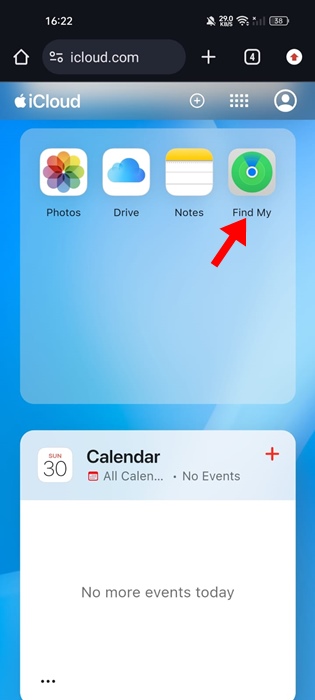
4. Once you can access your iCloud account, tap Find My.

Find My

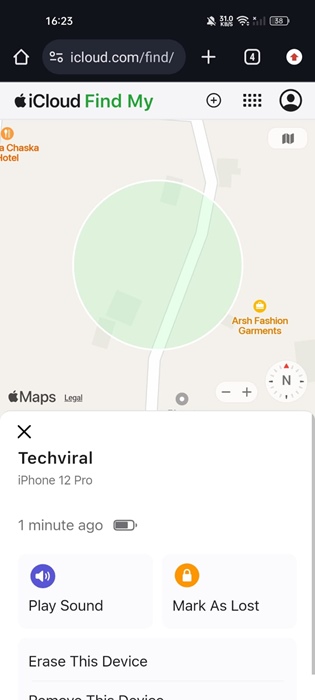
5. Now, you will be able to locate your missing iPhone.

locate your missing iPhone

6. You also get other options like Playing Sound, Marking your iPhone as lost, etc.

Find Your iPhone with Google Maps

Even though the Find My iPhone app serves well for this purpose, if you aren’t comfortable with it, you can utilize Google Maps’ Timeline feature to locate your lost iPhone.

Please note that this method will only work if the Google Maps app is already installed on your missing iPhone and the Location History services are enabled.

Also, the Google Maps timeline won’t tell you your iPhone’s exact location; it will just show where it has been recently.

You need to take that information as a hint to figure out where exactly your iPhone is. Open the Google Maps app on your Android phone and sign in to the same Google account used on your iPhone.

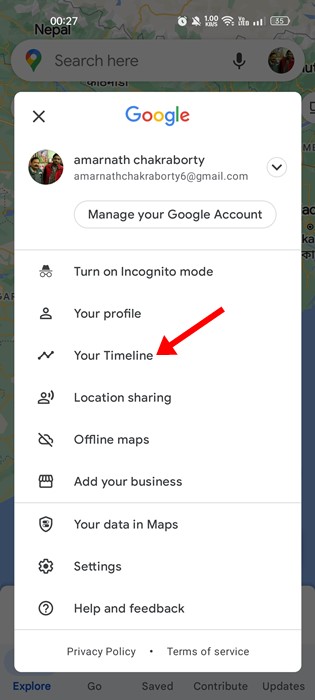
Your Timeline

Next, tap on the profile picture at the top right corner and select ‘Your timeline‘. You need to review the recent location history to get a clear idea of where your iPhone is kept.

Find Missing iPhone with Phone Tracker Apps

Like Android, iPhones have phone tracker apps. However, these apps need to be installed and set up on the iPhone before they go missing.

For this reason, we’ve mentioned this method further down in the article, as it’s unlikely you have such apps installed on your missing iPhone.

Once you get back your missing iPhone, you should install and set up any location sharing apps on your iPhone.

These location-sharing apps not only show you the location of your iPhone but also allow you to remotely control some features. To make the most of these apps, you would have to purchase a subscription, which is worth the price.

These are a few simple methods to find your iPhone from an Android device. Let us know if you need more help on this topic in the comments. Also, if you find this guide helpful, don’t forget to share it with your friends.